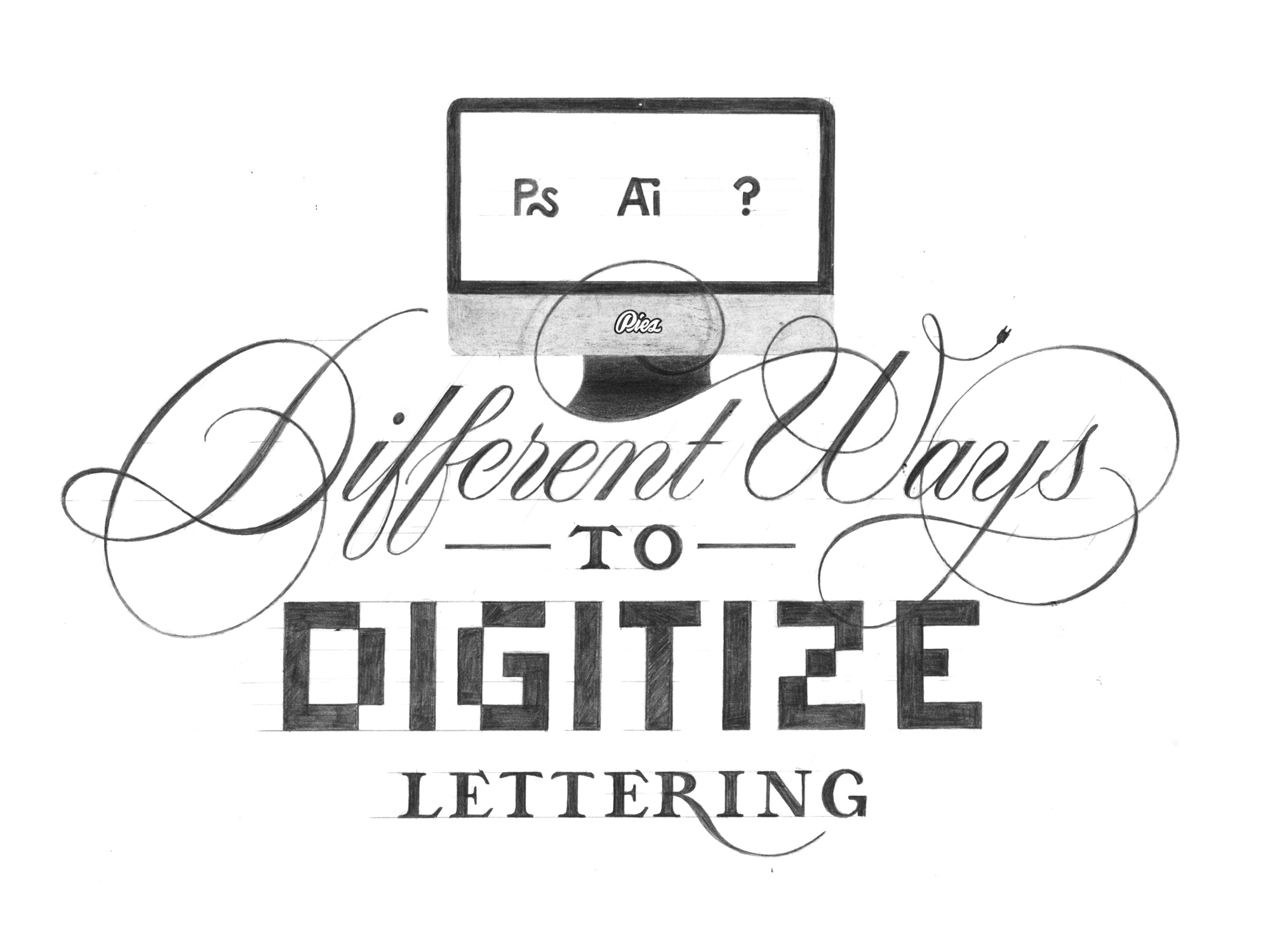
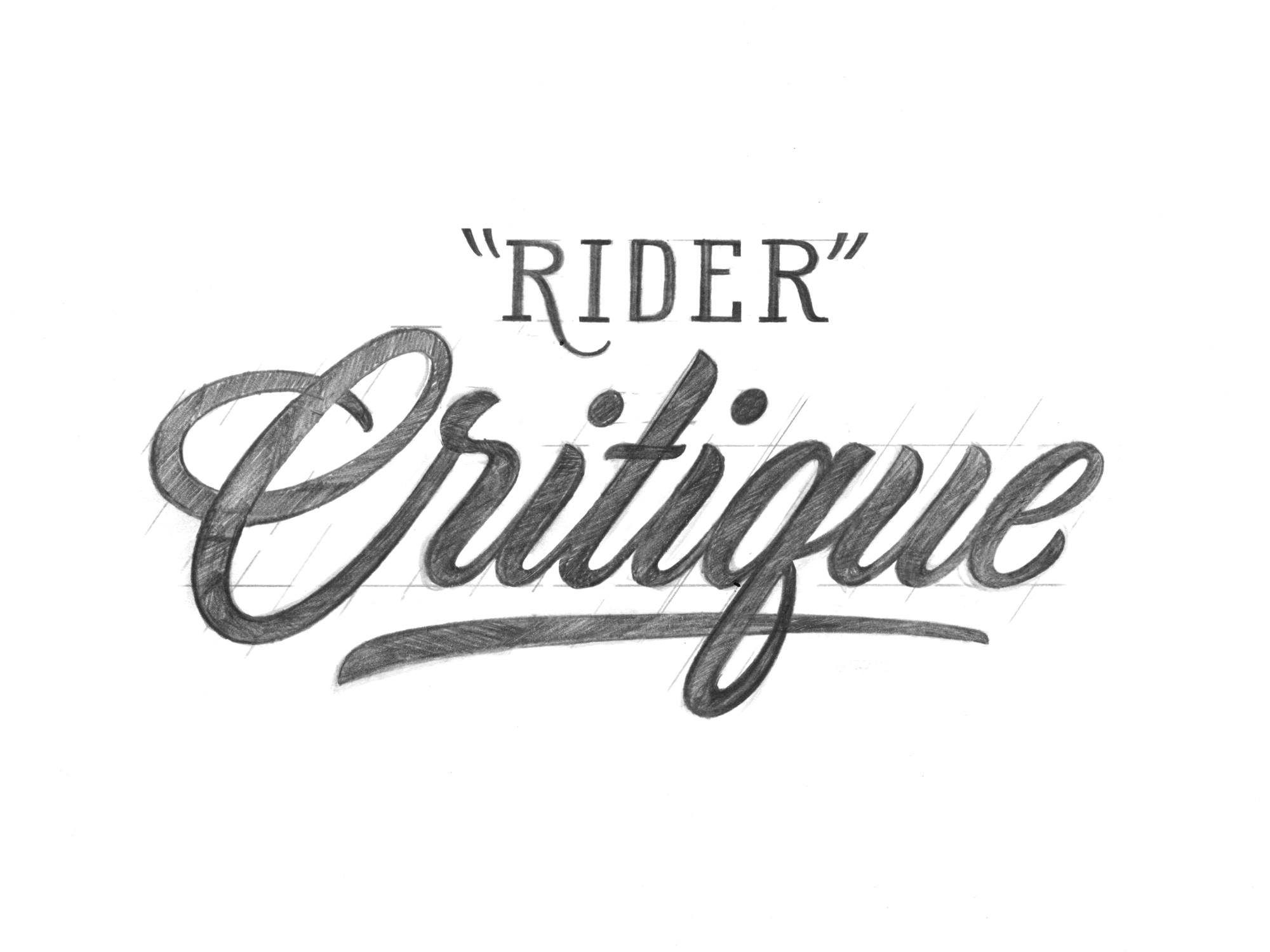
This post includes my top 10 tips and tricks for tracing hand lettering in adobe illustrator.
1. Create as many separate objects as possible:
Tracing each letter or flourish as a separate object has two advantages; It makes kerning easy and it allows you to duplicate a letter that appears more than once.
Double-clicking on an object that you want to edit, allows you to enter Isolation Mode, once in it, your only able to edit the object that you’ve selected. You can exit Isolation Mode by pressing escape. Using this feature removes the chance of accidentally adjusting a near-by object.
2. Plot anchor points on extremas and use horizontal/vertical handles:
An extrema is the outermost top, right, bottom, or left point on a shape. In the circle example above, an anchor point with vertical handles is placed on the left and right extremas and an anchor point with horizontal handles is used on the top and bottom extremas. This same concept can be applied to tracing letters.
This method is time efficient and practical. With Practice, the process becomes natural and almost thoughtless. Here’s a sample Adobe Illustrator file of my lettering if you’re interested in seeing how I place my anchors points and handles.
To learn more about the pen tool, you can check out my post Tracing with the Pen Tool using Adobe Illustrator.
3. Hold shift while placing anchor points to restrict handles to 0, 45 and 90°:
When using the pen tool, holding down shift while you place and drag out handles, restricts them to horizontal, 45 degrees and vertical.
4. Alternate between black and white backgrounds:
White lettering on a black background reads differently than black lettering on a white background. I frequently swap between the two combinations during my tracing process. This helps me notice flaws and create a final piece of lettering that works well in both situations (Light on dark / dark on light).
5. Decrease the stroke width when perfecting lines:
I start tracing with a .75-1pt stroke and end with an almost nonexistent .25pt stroke. Small problems seem to become more noticeable when you decrease the stroke width.
6. Reduce the keyboard increment when perfecting lines:
The keyboard increment setting controls how far an anchor point or handle moves when using the arrow keys. I start with the default setting (1pt) and lower it throughout the design process to make finer adjustments.
The Keyboard Increment setting can be found by navigating to Illustrator > Preferences > General, or by pressing (Cmnd+K). Anchor points and handles can be moved by clicking/ dragging, or by selecting them with the Direct Selection Tool (A) and nudging them around with the arrow keys.
7. Work in stages:
Breaking the process up into stages makes the tracing process faster and less overwhelming. I use three stages in my tracing process;
- 1. Rough - Quickly place all anchor points, drag out handles and don’t care about accuracy.
- 2. Revisions - Go back through and adjust the handles to match illustration.
- 3. Final Touches - Minor adjustments to lines using very small keyboard increment setting + arrow keys. I zoom in extremely close during this stage.
8. Adjust more than one line segment at time:
Once I’ve placed my anchor points, I start refining the lines. With the Direct Selection Tool (A), I grab lines and adjust the stress (Length of the handles) with the arrow keys. Because the handles are vertical and horizontal, the stress of the handle can be manipulated without altering its direction.
To increase the stress of a horizontal set of handles, you would press left/right on the arrow keypad, or up/down if you’re manipulating a vertical pair of handles.
Whenever possible, I grab two lines and adjust them at the same time. After I get them close to where I want them to be, I’ll select them individually and make more adjustments. This saves me a ton of time over the course of a project, especially if it’s complex.
9. Use layers:
This allows you to lock or hide layers when necessary. I use three layers; a black bottom layer, one for the scan, and the top layer is for the digital trace. I always place my guidelines on the digital trace layer so they are visible when the other two are layers are hidden.
10. Step away and come back:
If you’re getting frustrated or starting to make slow progress, take a break. Stepping away and momentarily forgetting the design makes problems easy to notice when you come back.
Incorporating these techniques along with patience, will improve the quality of your work. I’d love to hear your thoughts in the comment section below - Thanks for reading!
Download my .ai Trace
Adobe CC
Software, premium fonts, cloud storage
I use Adobe Illustrator and Photoshop on a daily basis. Adobe gives you the option to purchase single apps or all of them for a reoccurring monthly fee. I’ve chosen the ‘All Apps’ package because it gives you access to premium fonts and I occasionally use other design applications. Adobe offers large discounts students.
 All Apps: $49.99/mo
$19.99/mo for students